
Sketch to Photo: Can AI Turn a Sketch Into a Realistic Image?
Yes. Modern sketch-to-image and image-to-image diffusion models can turn a sketch into a realistic image in seconds. Using a browser sketch to photo workflow, AI reads your line art as a spatial blueprint and renders believable lighting, surface texture, and depth without starting from scratch.
Every conversion comes down to one setting: preserve the original composition (denoising strength 0.4–0.6 keeps proportions, perspective, and silhouette locked) or let AI improvise freely (0.8–1.0 treats your drawing only as a loose layout seed).
Upload Source Image
Character (0.6)
0.6 is the sweet spot for style transfer — converts photos into anime, oil, or 3D while preserving layout.
Browser Sketch Converter
Upload a pencil scan or click any of the 4 presets above. Adjust strength from 0.2 to 1.0 with 2 free 1K runs daily and no login.
Structure-Lock Prompt
Copy our tested prompt template that keeps line proportions fixed while replacing graphite strokes with realistic materials and shadows.
Compare 5 AI Tools
Side-by-side HTML matrix covering Image to Image AI, ChatGPT, Midjourney, Leonardo AI, and Adobe Firefly—with limitations for every row.
0.4–0.6 Structure Lock
Preserves key silhouette, perspective lines, and subject placement from your scan.
One-Click Prompt Copy
Ready-to-paste material and lighting prompt that works across major AI models.
2 Free 1K Runs / Day
Test sketch to photo online in the browser with no account required and zero watermarks.
Honest Failure Boundaries
Clear guidance on gray paper noise, handwritten labels, and proportion drift.
Sketch to Photo Examples: 4 Before & After Categories
Real sketch-to-realistic pairs across four distinct subjects—character portraits, European street architecture, industrial product design, and wildlife. Click any example to load its sketch and prompt directly into the workspace above.
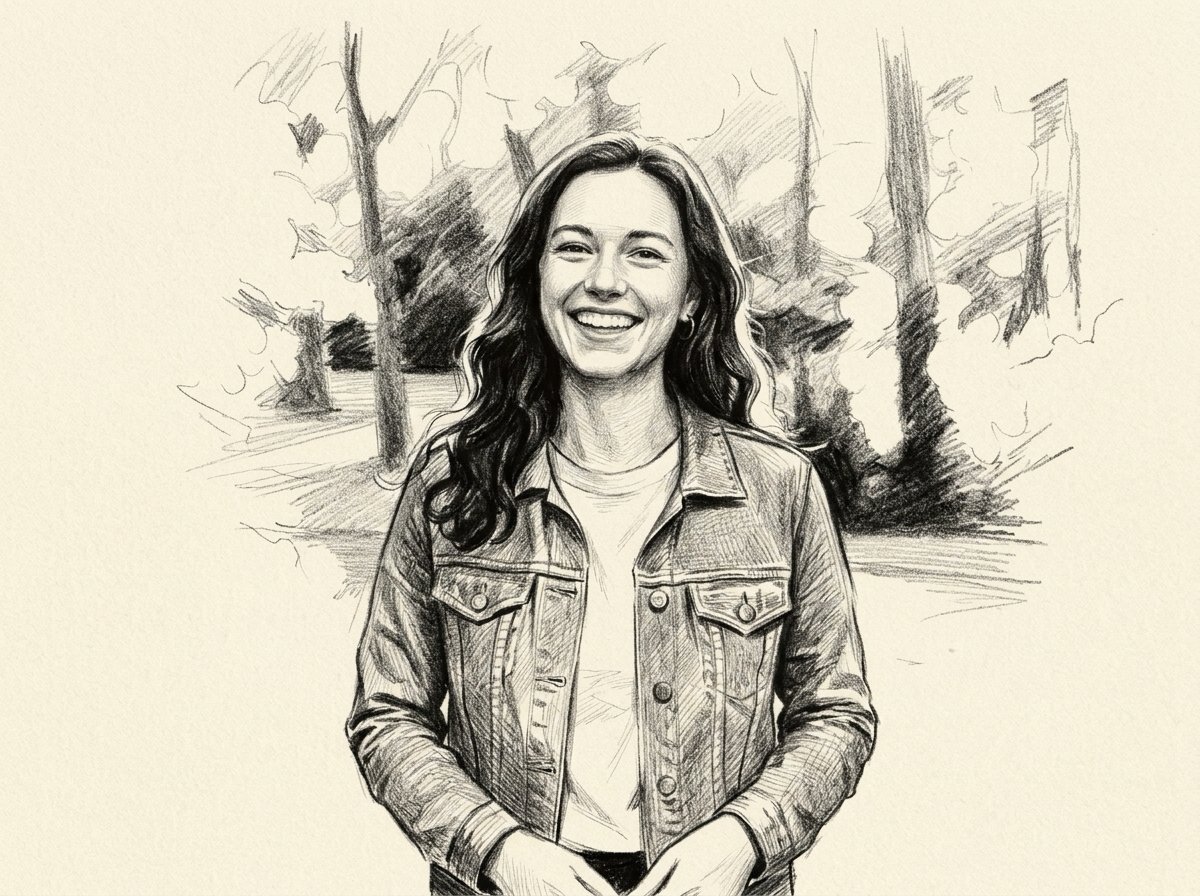
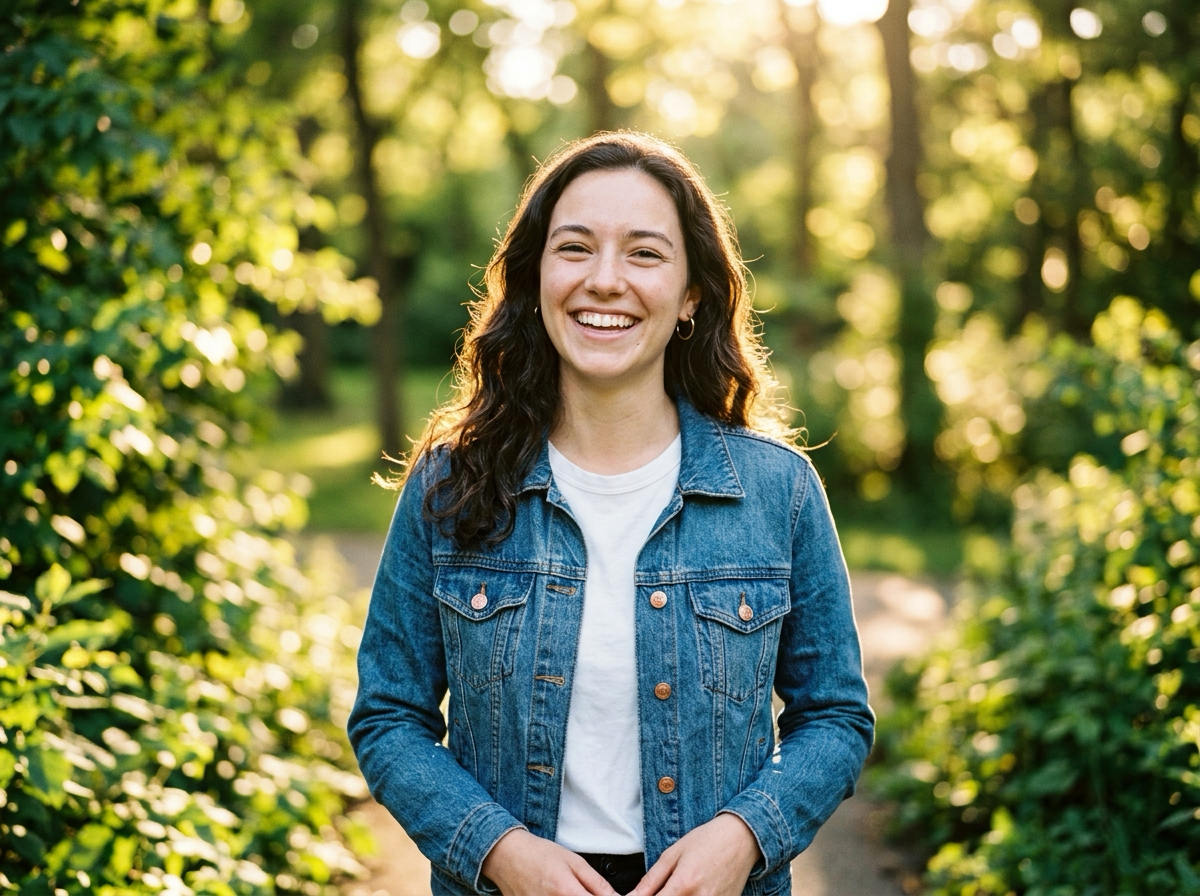
Character Portrait Rendering
Converts graphite portrait hatching into natural skin texture, woven denim seams, and soft forest daylight while keeping facial expression and jacket folds aligned.
SKETCHREALISTIC PHOTOArchitectural Street Rendering
Turns an ink-and-pencil archway perspective drawing into weathered limestone, wrought-iron balconies, shuttered windows, and warm afternoon street shadows.
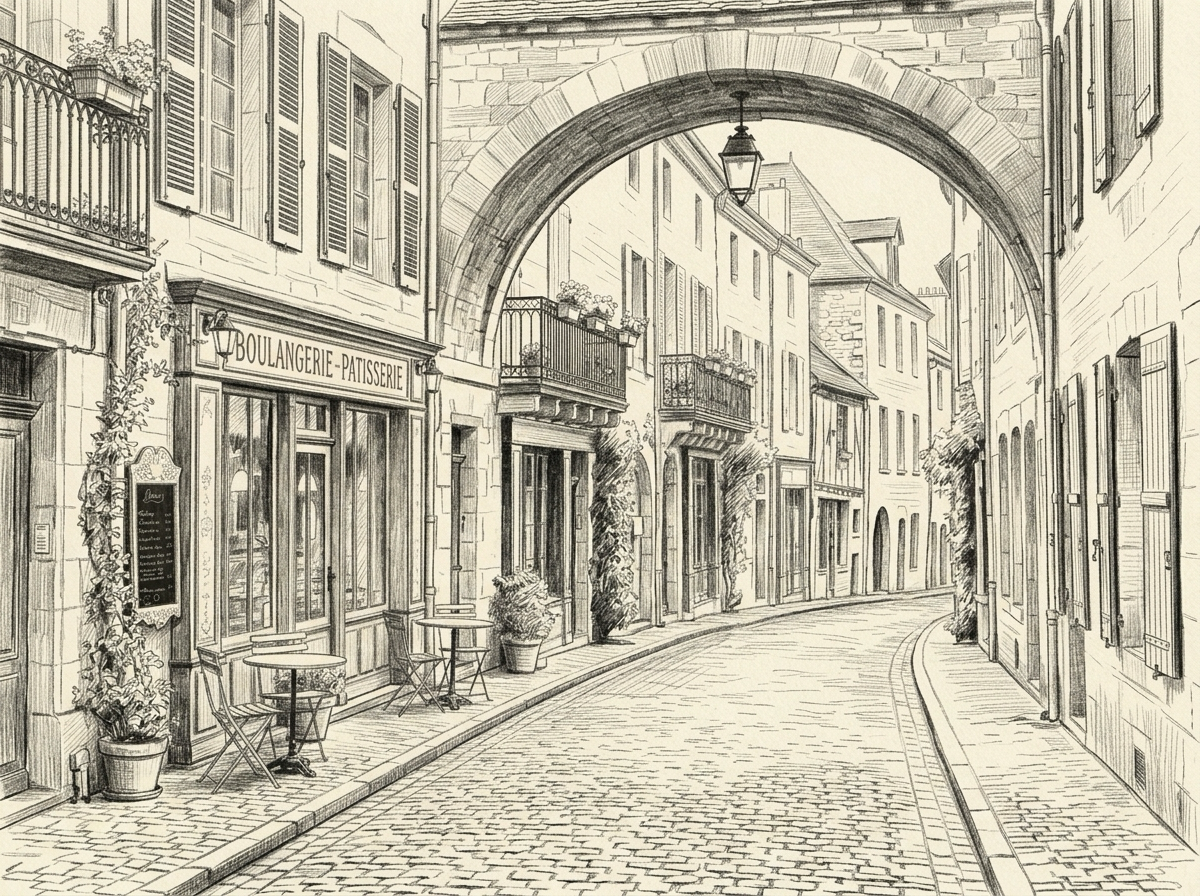 SKETCH
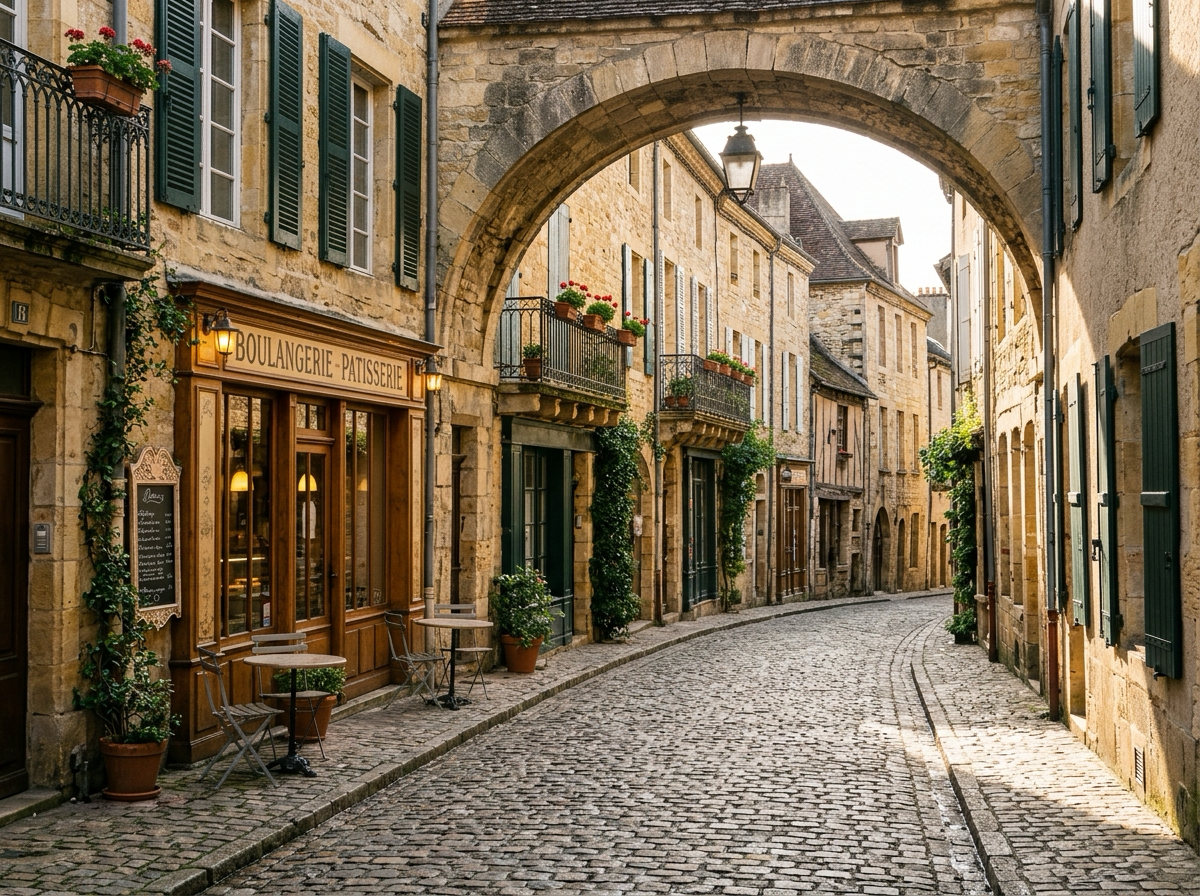 REALISTIC PHOTO
Product Design Rendering
Renders a clean industrial sketch of a dropper bottle into amber glass refraction, matte ribbed cap plastic, and porous travertine stone with realistic window light.
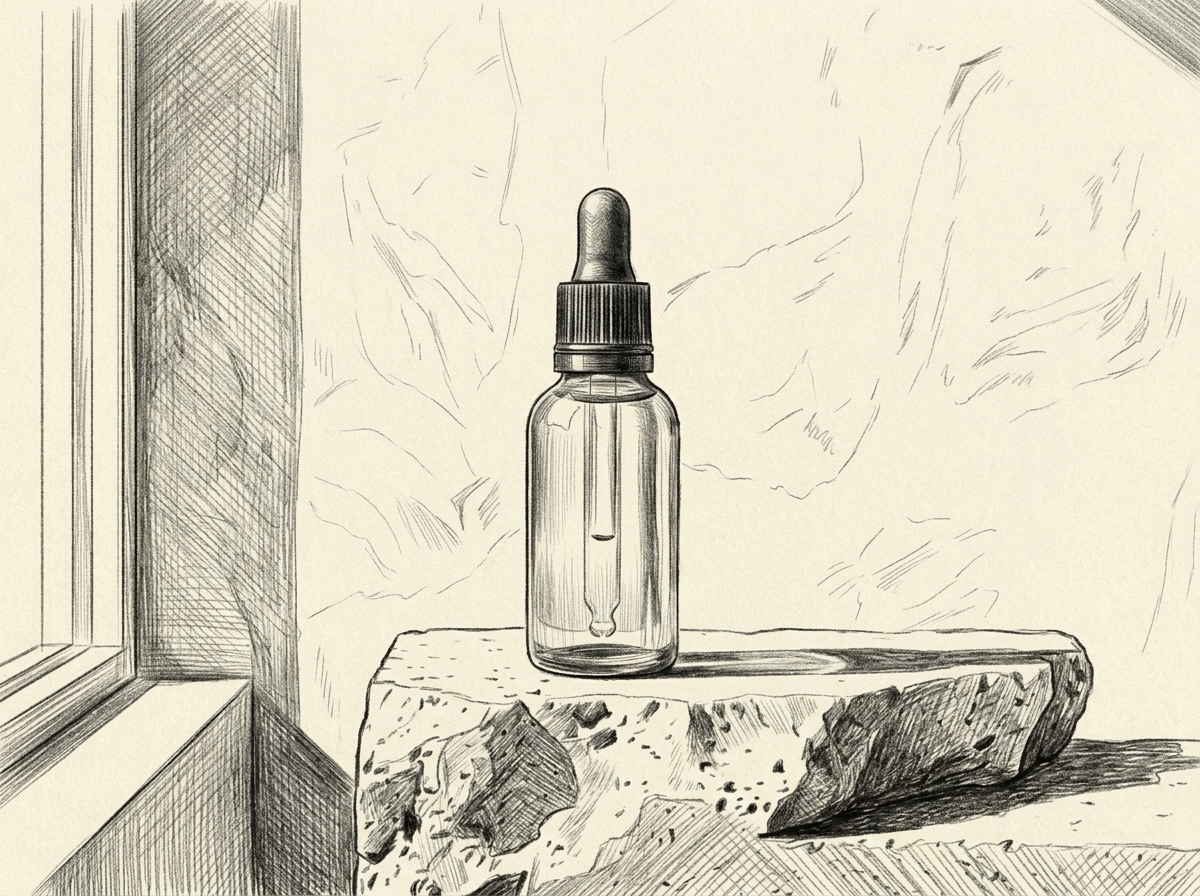 SKETCH
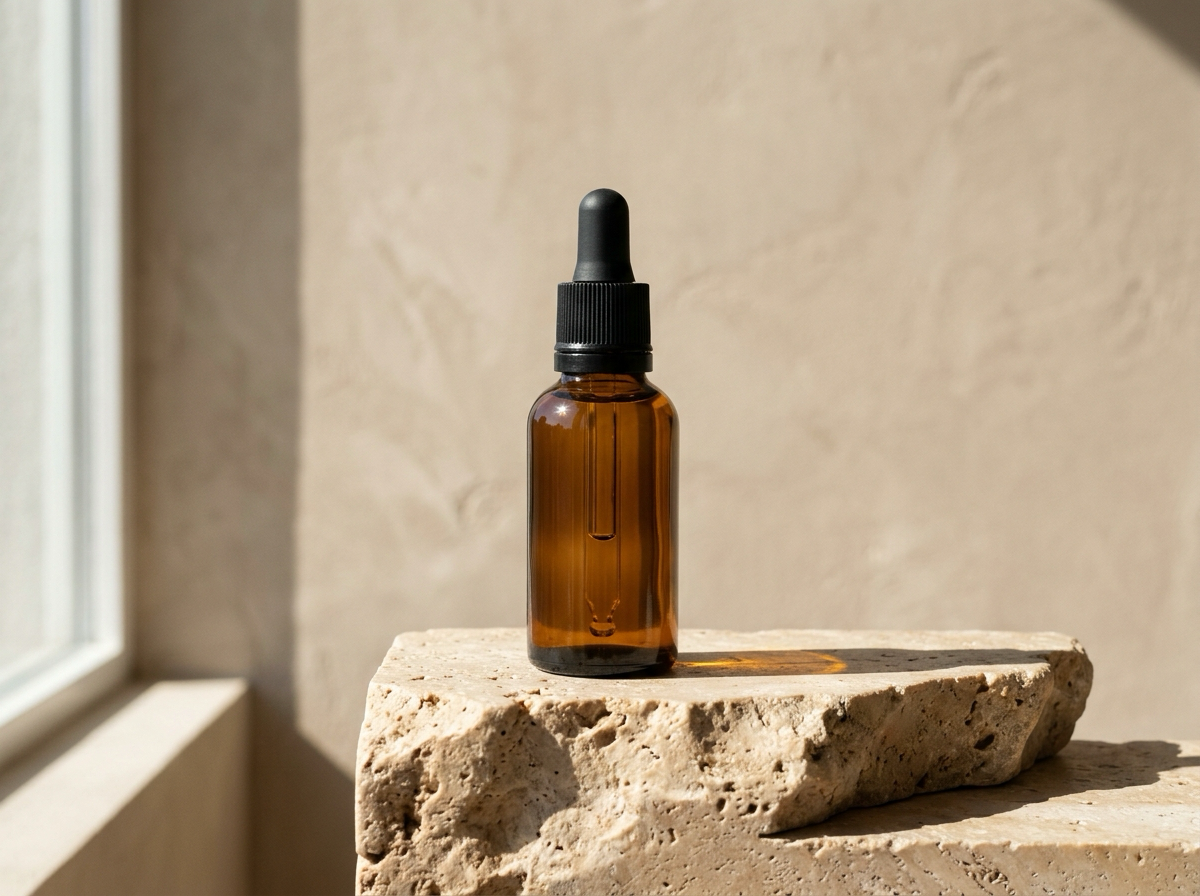 REALISTIC PHOTO
Animal & Creature Rendering
Transforms a pencil drawing of a red fox on a forest log into layered fur strands, wet nose specular highlights, mossy bark, and shallow-depth pine bokeh.
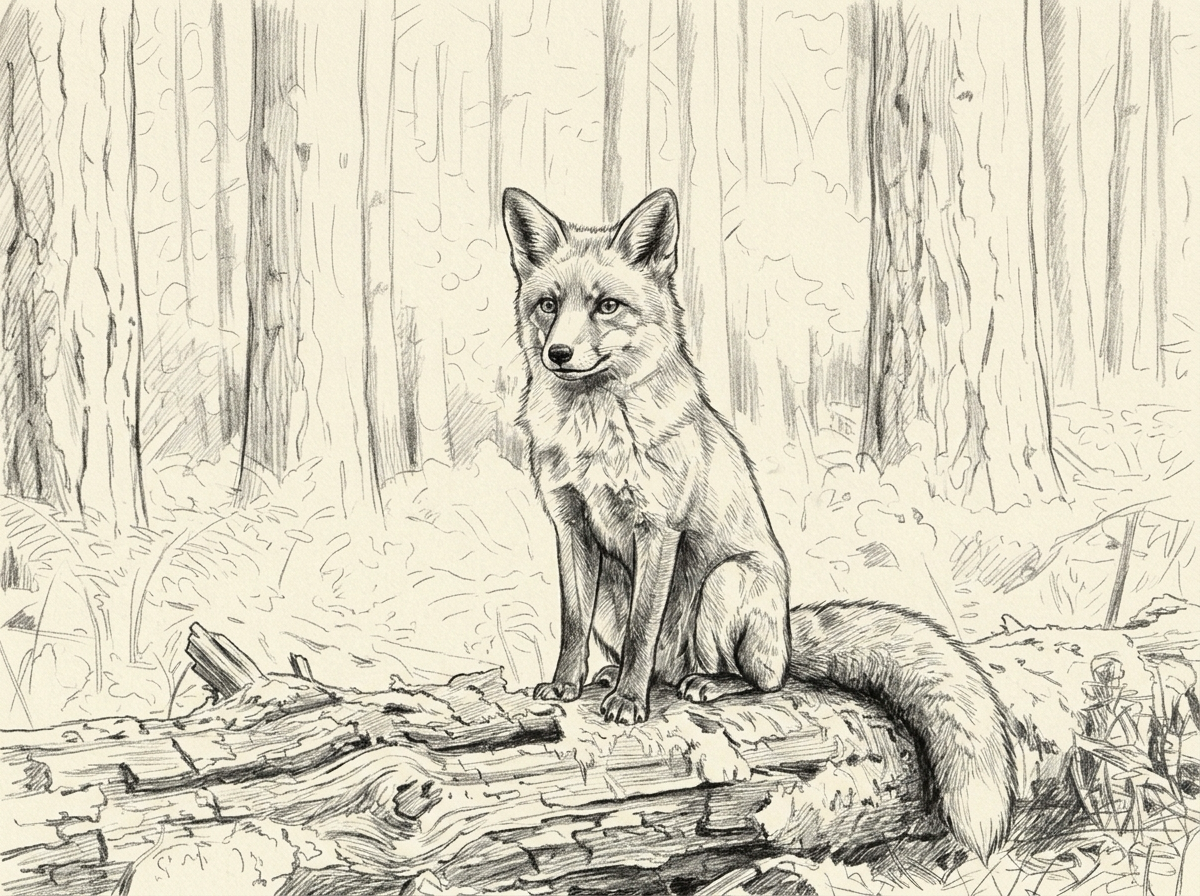 SKETCH
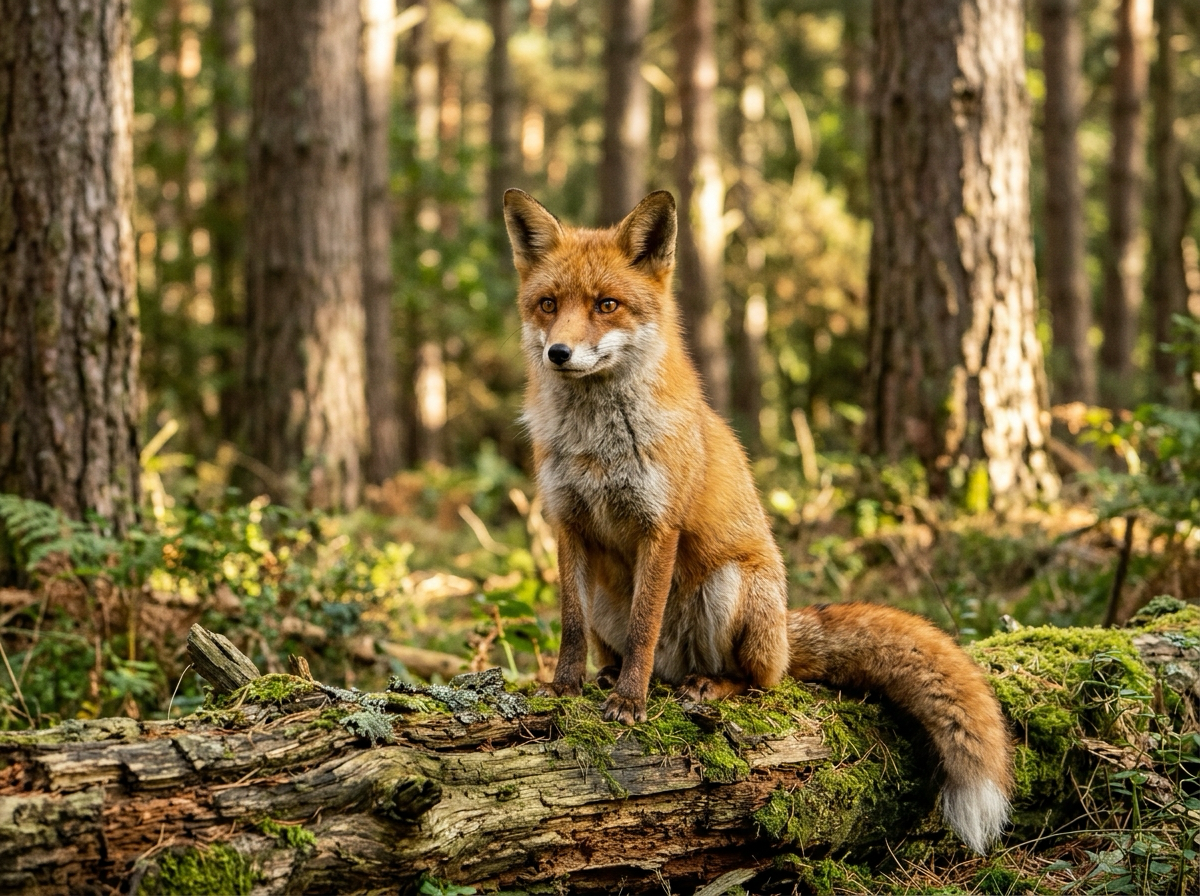 REALISTIC PHOTO
What Makes a Sketch-to-Image Output Look Truly Realistic? (6 Criteria)
A glossy AI render is not the same as a believable photograph. Before approving any sketch to photo output for a client pitch, storyboard, or product deck, check it against these six verifiable standards:
1. Structural Proportions Stay Intact
Limb ratios, building rooflines, bottle height-to-width balance, and horizon perspective match your original drawing rather than drifting into generic stock shapes.
2. Consistent Light Direction
Highlights, core shadows, and cast shadows all agree on one primary light source—never lit from the left on the subject and from the right on the background.
3. Physically Plausible Materials
Matte cotton weave, translucent glass, rough limestone, and layered animal fur each scatter light differently instead of sharing an artificial plastic sheen.
4. Details Refined, Not Redesigned
Buttons, window panes, collar seams, and facial landmarks gain photographic sharpness without multiplying, shifting position, or disappearing.
5. Grounded Contact Shadows & Depth
Objects rest firmly on floors, plinths, or logs with dark ambient occlusion at contact points and natural lens depth-of-field falloff in the background.
6. Zero Residual Paper or Graphite Artifacts
No sketchbook grain, ruled notebook lines, phone-photo shadows, or heavy black contour outlines leak into the final realistic photograph.
Best AI Sketch to Photo Tools Compared (2026)
No single generator wins every drawing type. Below is an honest comparison of five widely used options—including our own image to image AI workbench—covering input method, structure retention, real limitations, and entry pricing.
| Tool & Positioning | Input Method | Structure Retention | Limitations | Pricing |
|---|---|---|---|---|
01Image to Image AI (This Page) Browser sketch-to-photo & img2img workbench with 0.2–1.0 denoising control | Upload JPG, PNG, or WEBP scan + text prompt + optional reference image | Strong at 0.4–0.6 strength across portraits, products, and architecture | Gray pencil paper can be read as surface noise; proportions cannot be 100% locked; handwritten text blurs | 2 free 1K runs/day (no login); paid packs & plans from $9.90 |
02ChatGPT (GPT Image) Conversational sketch rendering and iterative prompt editing in chat | Upload sketch image directly into chat + natural-language instructions | Moderate; captures overall subject well but subtly shifts framing across turns | No numeric denoising slider; tends to re-compose proportions on follow-up edits; strict daily caps on Free tier | Limited free messages; Plus $20/mo |
03Midjourney High-aesthetic concept art and cinematic lighting from image references | Web editor / Discord image prompt + Omni-Reference or Retexture | Good with Retexture; looser with standard image prompts that favor painterly style | No free tier; prioritizes stylized drama over strict line fidelity; harder to lock exact product or CAD dimensions | No free plan; Basic from $10/mo |
04Leonardo AI Real-time drawing canvas and ControlNet-guided sketch-to-image suite | Live browser brush canvas or uploaded sketch with Edge/Depth guidance | High when Edge-to-Image or Depth guidance is enabled | 150 free daily tokens run out fast on high-res passes; busier interface for quick one-off uploads; presets can over-smooth fine lines | Free 150 tokens/day; Apprentice from $10–$12/mo |
05Adobe Firefly Commercial-safe structure reference integrated into Adobe Creative Cloud | Upload sketch into Structure Reference slot + strength slider + style prompt | Reliable macro silhouette matching with adjustable Structure strength | Softens tight technical linework; requires an Adobe account; commercial high-res workflow depends on paid Firefly or CC credits | Limited free monthly credits; Standard from $9.99/mo |
How to Use Sketch to Photo in 4 Steps + Copyable Prompt
Follow this four-step routine to get clean, believable results from hand-drawn scans, then copy the structure-locking prompt below.
Upload a Clean Scan
Photograph your drawing in even daylight or scan it flat. Crop out desk edges and boost contrast slightly so pencil lines stand out from white paper.
Describe Materials, Setting & Light
Spell out exact real-world surfaces (weathered stone, matte cotton, amber glass), the background environment, and light direction instead of writing only 'realistic'.
Lock Original Composition
Choose 0.4–0.6 denoising strength and explicitly instruct the model to preserve silhouette, perspective, and proportions without redesigning geometry.
Generate & Refine
Review shadows, edges, and proportions at 1K. Lower strength if the layout drifted, or raise strength to 0.6–0.8 if faint pencil outlines remain visible.
Turn this hand-drawn sketch into a realistic photograph while strictly preserving the original composition, silhouette, perspective, and proportions of every line. Replace graphite strokes with physically accurate materials ([describe materials: e.g., weathered stone, brushed aluminum, natural skin and denim weave]), place the subject in [describe environment], and illuminate the scene with [describe lighting: e.g., soft natural daylight from the upper left with grounded contact shadows]. Shot on a 50mm lens, realistic depth of field, natural color grading, no paper grain, no pencil outlines, no redesigned geometry.Pick Your Sketch Setup: Instant Workflow Recommendation
Not sure which tool, denoising level, or budget fits your drawing? Select your subject, top priority, and budget below for an immediate sketch to photo recommendation.
01 · What are you drawing?
02 · What matters most?
03 · Budget?
Suggested Tool
Image to Image AI (this page — numeric 0.4–0.6 control, 2 free 1K/day)
Suggested Strength
0.4 (tightest line & proportion lock)
Prompt Tip
Specify natural skin texture, eye catchlights, fabric weave, and lens focal length (e.g., 50mm or 85mm) while locking head tilt and expression.
Known Limitations of AI Sketch to Photo Conversion
Even the strongest 2026 diffusion models have predictable failure modes when reading hand-drawn input.
Knowing these five boundaries upfront saves wasted generations and helps you clean your scan before uploading:
01Handwritten Text & Callout Labels
Dimension arrows, notes, or handwritten product logos on a sketch almost always warp into illegible artifacts. Erase or crop text annotations before rendering.
02Heavy Line Overlap & Occlusion
Crossed-out construction lines, dense overlapping limbs, or cluttered sketchy scribbles confuse depth ordering and cause merged objects.
03Anatomical & Biological Proportion Errors
If a character or animal sketch has misaligned eyes or awkward joints, AI either inherits the anatomical error into a realistic photo or alters your pose to compensate.
04Gray Pencil Smudges & Paper Shadows Read as Texture
Dim phone photos, notebook grid lines, and graphite shading smudges are frequently interpreted as wall stains, fog, or dirty fabric.
05Proportions Cannot Be 100% Locked
Diffusion models redraw pixels probabilistically. Expect minor millimeter-level shifts in thickness or perspective; engineering-grade CAD accuracy still requires 3D rendering.
Sketch to Photo FAQ
Direct answers to the most common questions about converting drawings into realistic photographs online.