Selfies & Over-Filtered Portraits
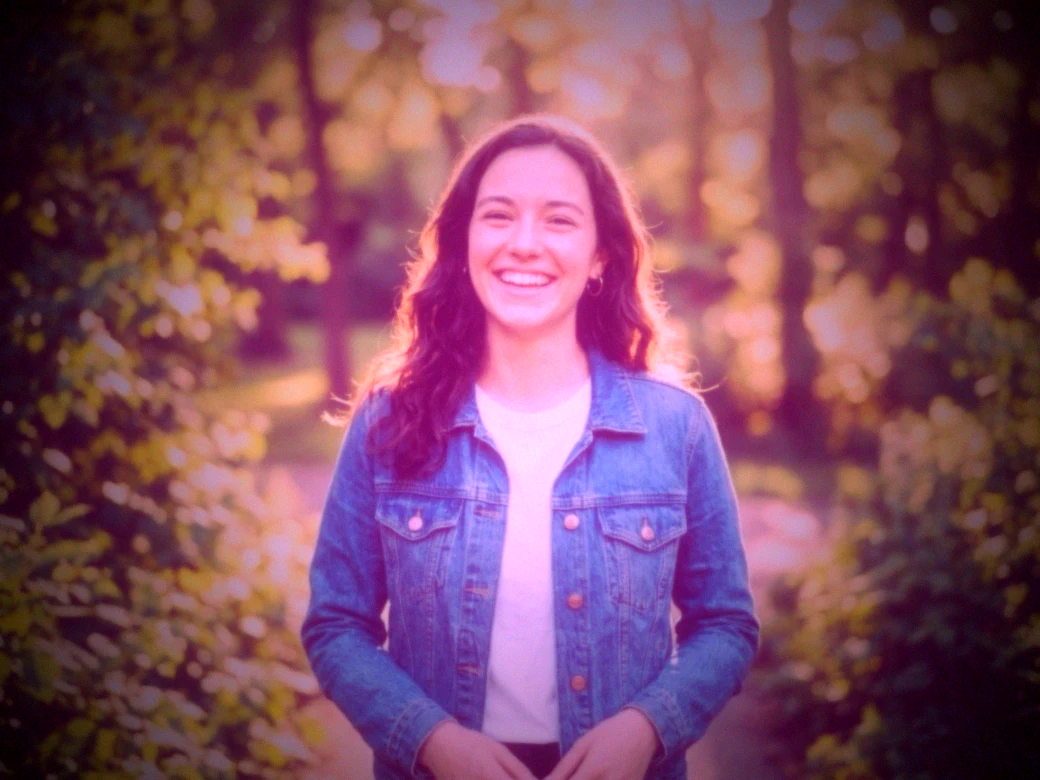
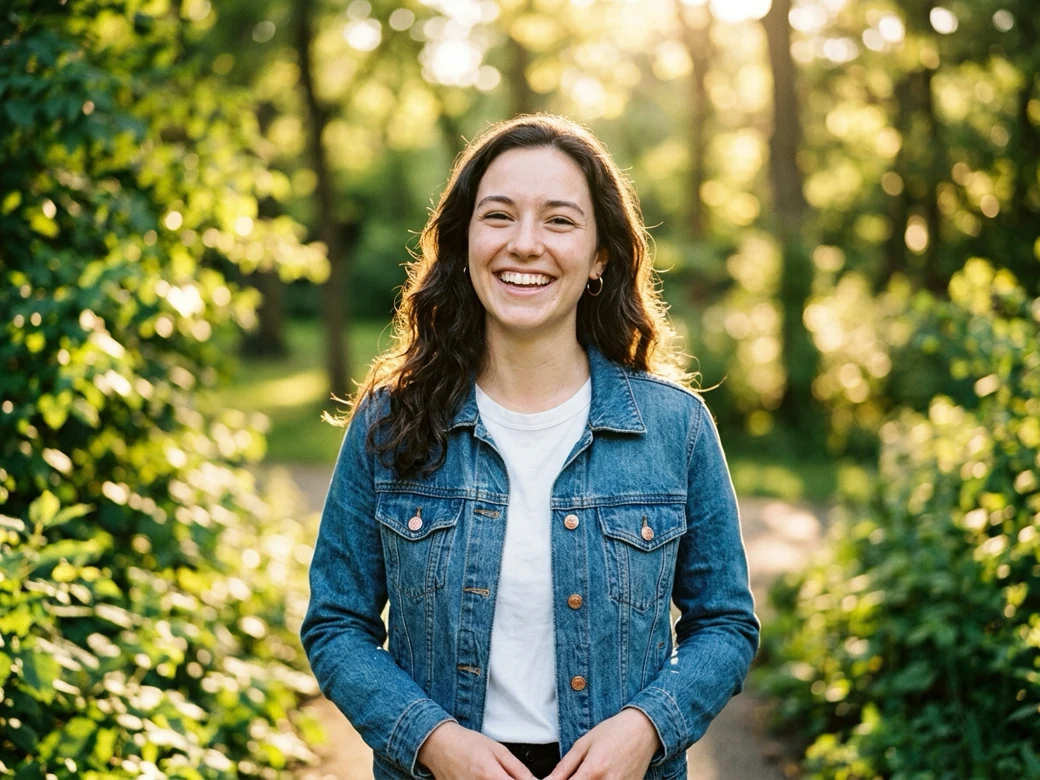
Tone down pink or orange tints, heavy skin smoothing, and dreamy bloom on saved selfies. Use Light (0.2) strength and check eyes, hairline, and expression so the portrait stays recognizable.
Upload one filtered image to remove filter from photo tints, glow, grain, and dark vignettes in your browser. Use a built-in cleanup preset, run 2 free watermark-free 1K edits daily without login, and download directly.
Generative restoration: AI estimates a cleaner, more natural version by toning down color casts, haze, and grain — it cannot recover overwritten original pixels. Use your original file or app edit history when available for an exact reversal.
Drop or click to upload one photo
Pink Glow Selfie
2 free watermark-free 1K Standard runs/day (00:00 UTC reset, no login) with free direct download.
Generative preview — check faces, skin texture, and fine text before reusing.
Zero-Prompt Cleanup Presets
Built-in presets reduce tints, glow, grain, and vignettes automatically with no written prompt.
Free Download, No Login
2 free watermark-free 1K Standard runs daily per IP with direct PNG, JPG, or WEBP download.
0.2–0.6 Structure Lock
Use Light (0.2) to lock faces, or 0.4–0.6 for heavy sepia and split-tone casts.
Browser-Based & Private
HTTPS transfer with 24-hour automatic expiry on temporary cloud uploads and browser history.
A three-step preset workflow to remove filter from photo files saved as flattened JPG, PNG, or WEBP.
Upload one JPG, PNG, or WEBP up to 24 MB (or scan the mobile QR code). Pick the sharpest saved copy so the model has clean edges and lighting cues.
Keep Auto Cleanup or choose Color Tint, Beauty & Glow, or Grain & Vignette. Use Light (0.2) for portraits and Balanced (0.4) for strong casts — no prompt needed.
Drag the wipe slider to inspect skin texture, eyes, labels, and shadows, then download your watermark-free PNG, JPG, or WEBP without signing in.
Flattened filters overwrite original pixel values. Knowing what an AI cleanup can reduce — and what it cannot retrieve — avoids wasted retries.
| What AI Can Reduce or Rebalance | What AI Cannot Recover |
|---|---|
Heavy Color Tints & Artificial Casts Neutralizes warm orange, magenta, cool blue, sepia, neon, and split-tone casts toward natural daylight balance. | True Original Colors from Black-and-White Photos Monochrome files discard chroma channels permanently; AI can only guess plausible colors, never prove the real hue. |
Added Film Grain & Texture Overlays Softens added synthetic film grain and retro noise while keeping believable surface texture. | Out-of-Focus or Heavy Motion Blur Built for stylized filter cleanup rather than optical deblurring or motion-blur reconstruction. |
Dreamy Glow, Bloom & Beauty Haze Tones down soft-focus bloom, pink skin washes, and waxy beauty smoothing for a natural portrait. | Overwritten Pixels Under Opaque Overlays Opaque stickers, text boxes, emojis, and AR masks replace the pixels underneath; AI can only invent guesses. |
Darkened Corner Vignettes & Lifted Matte Blacks Lifts heavy dark corner vignettes and restores cleaner shadow contrast on faded saves. | Clipped Pure-White Highlights or Crushed Shadows Blown pure-white highlights or crushed pure-black shadows lose camera sensor detail permanently. |
Excessive Saturation & Harsh Sharpening Pulls back oversaturation, HDR halos, and harsh over-sharpened edges into balanced midtones. | Extreme Face-Reshaping Geometry If a beauty app narrowed a jawline or enlarged eyes before saving, AI cannot measure original proportions. |
When you only have a flattened copy and need to remove filter from photo files cleanly, these four workflows work best.
Tone down pink or orange tints, heavy skin smoothing, and dreamy bloom on saved selfies. Use Light (0.2) strength and check eyes, hairline, and expression so the portrait stays recognizable.
Strip moody teal-orange or warm presets from catalog shots so fabrics, packaging, and glass reflect honest colors before publishing to Shopify or Amazon.
Reduce heavy sepia wash, thick artificial grain, and dark corner vignettes from older camera-app exports to get a cleaner base for printing or archiving.
Layering a new look over an old preset creates muddy shadows. Run one pass to remove filter from photo grading first, then restyle cleanly in our main image to image AI studio.
Revert the native file first whenever possible; use AI regeneration when you need to remove filter from photo downloads where edit history is gone.
| Comparison | Undo Original Filter (Native History) | AI Filter Removal (Generative Regeneration) |
|---|---|---|
| How it works | Reverts non-destructive edit metadata or reopens the untouched RAW / camera original. | Estimates and regenerates a less filtered photograph from flattened pixels. |
| Pixel accuracy | 100% exact original pixels with zero generative shift. | Natural visual estimate; pores, hair strands, and tiny text may shift slightly. |
| What you need | Original device, cloud photo history (iOS / Google Photos), or layered project. | Any flattened JPG, PNG, or WEBP up to 24 MB — no source project required. |
| Best for | Recent photos you edited yourself with Revert to Original still available. | Social downloads, forwarded images, retro app saves, and filtered supplier photos. |
| Speed & cost | Instant and free inside your phone gallery or photo editor. | 10–15 seconds online; 2 free watermark-free 1K runs/day (no login) with free download. |
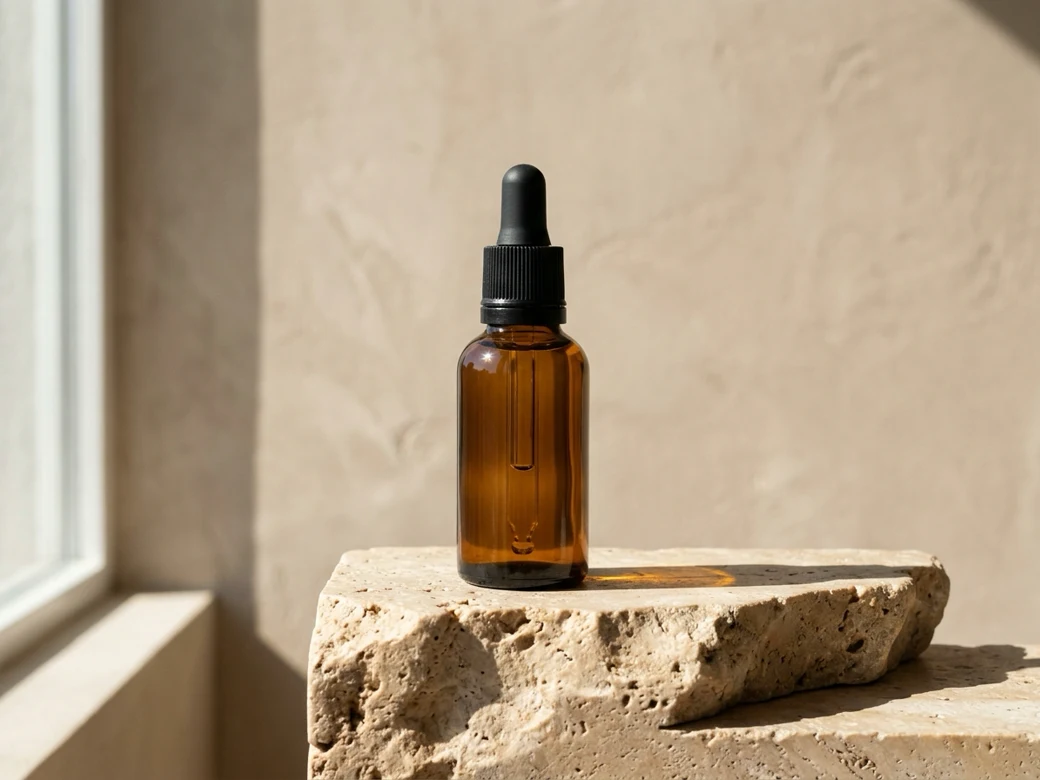
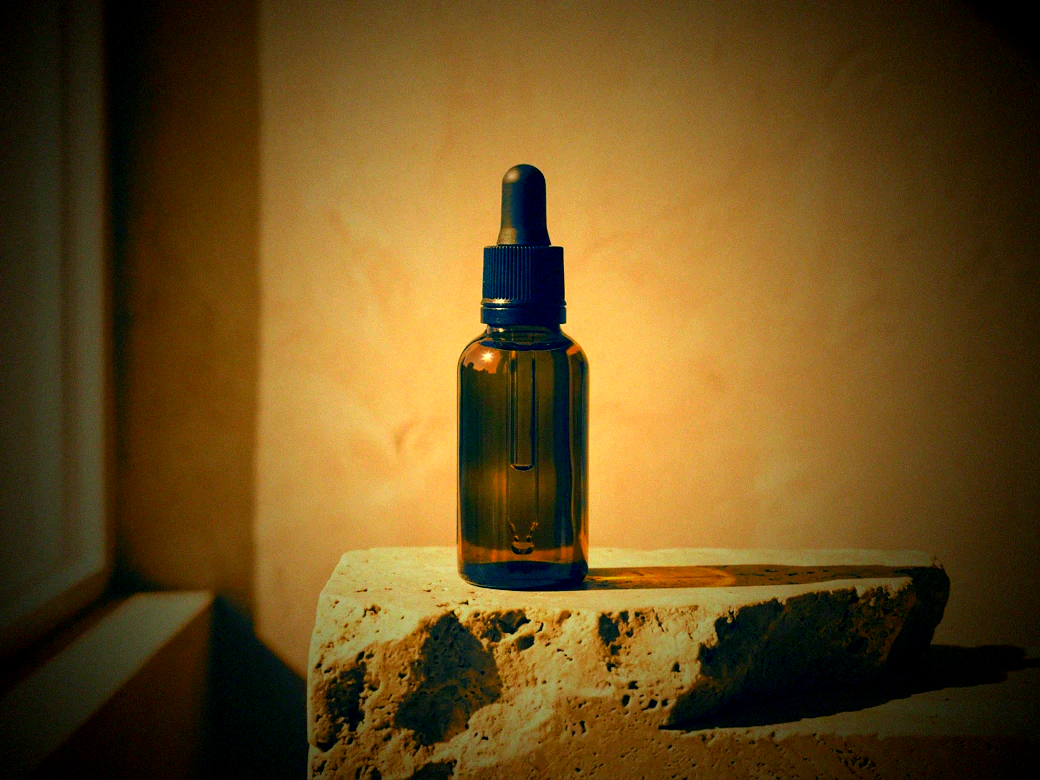
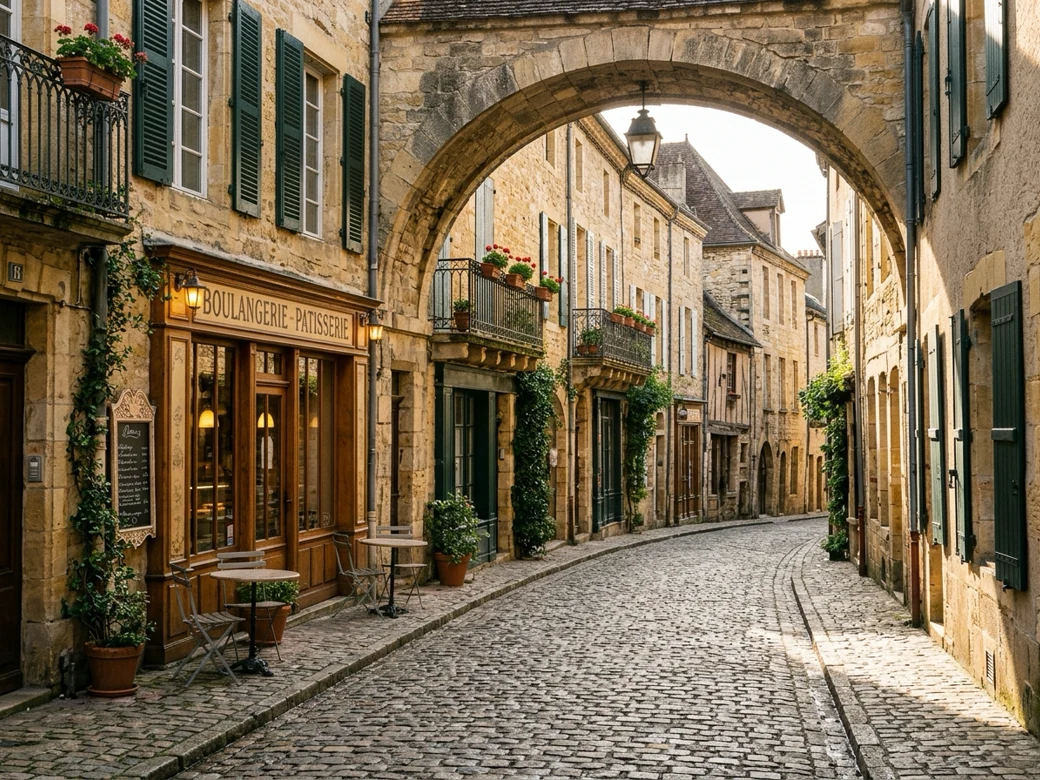
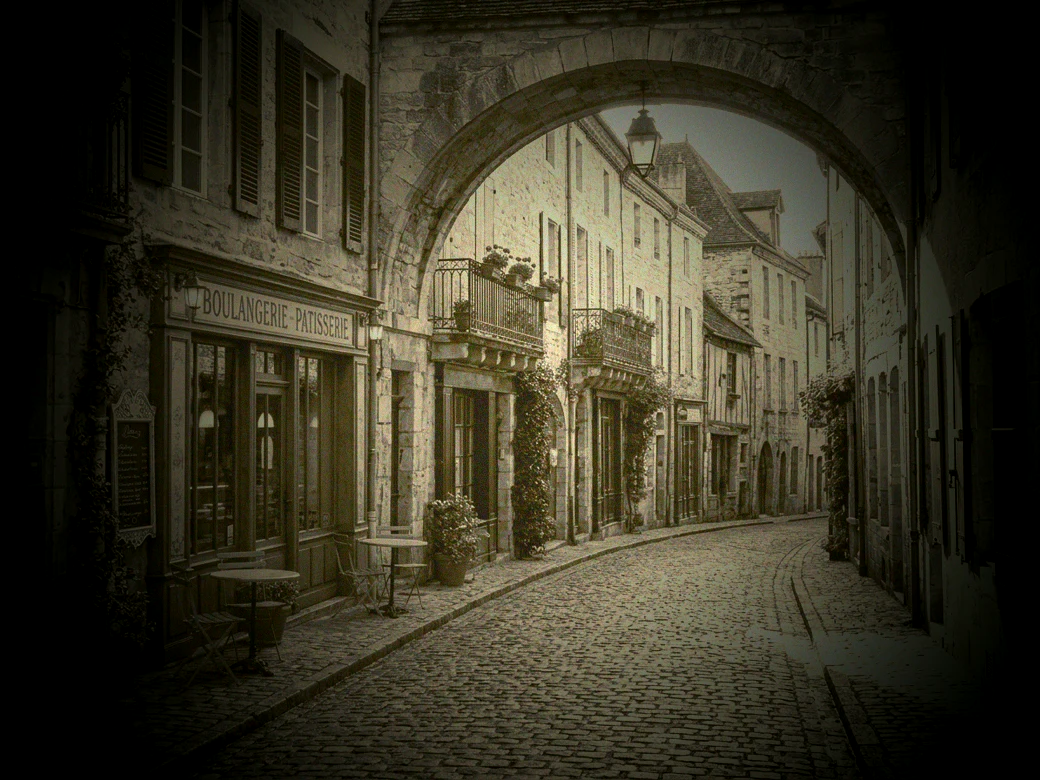
Drag each slider to compare how our presets remove filter from photo portraits, products, and vintage street saves.
Cuts magenta cast, highlight bloom, and vignette while keeping smile and daylight foliage natural.
Neutralizes amber-cyan split toning, grain, and dark corners so glass and stone look true to life.
Strips sepia wash, coarse grain, and oval vignette to restore clear limestone and street contrast.
Honest answers on free daily limits, watermark-free downloads, generative boundaries, and social filter cleanup.